Getting Started with AWS ECS for Containerized Applications
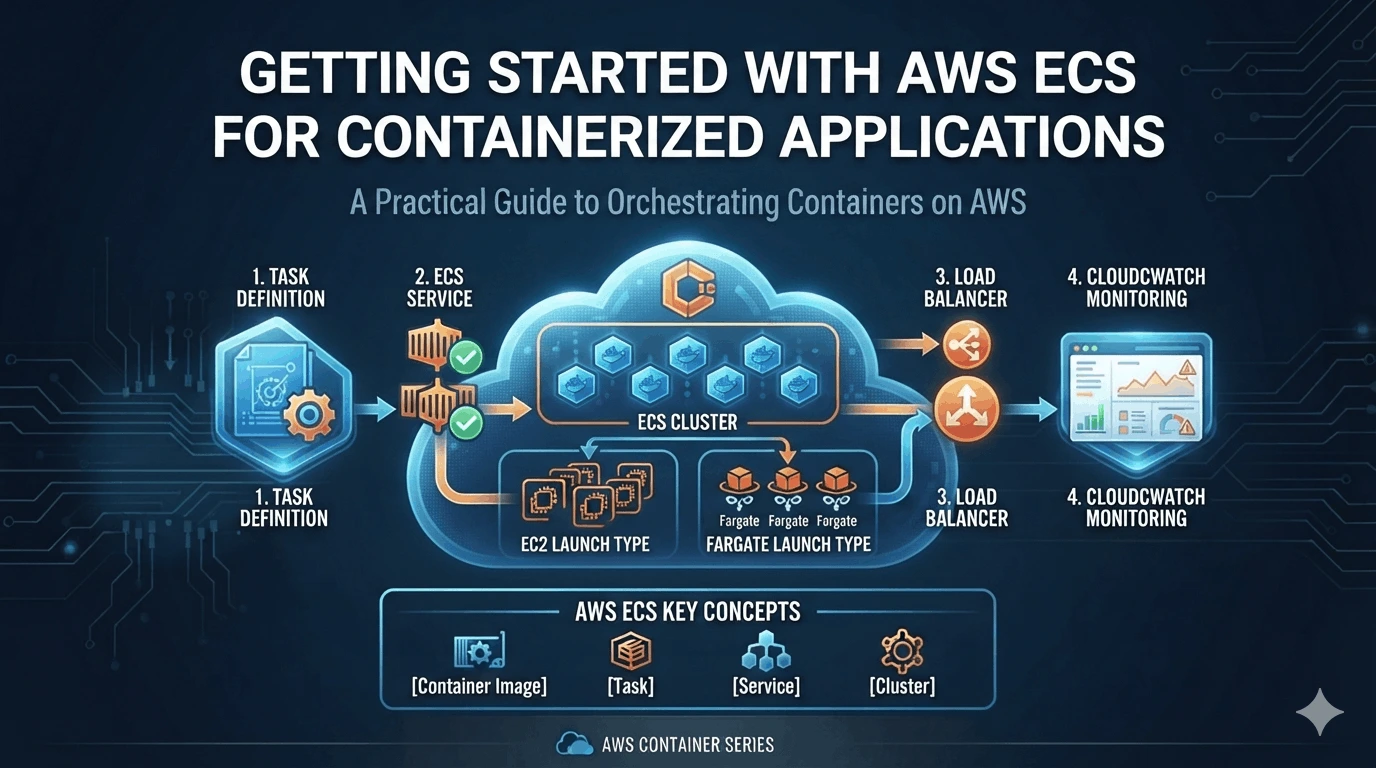
Containerization has revolutionized software deployment, offering portability, scalability, and efficiency. Among the various container orchestration platforms, Amazon Elastic Container Service (ECS) stands out as a powerful and scalable solution tightly integrated with the AWS ecosystem. If you're looking to leverage the benefits of containerization on AWS, this guide will walk you through the fundamentals of ECS and help you get started deploying your own containerized applications.
What is AWS ECS?
Amazon Elastic Container Service (ECS) is a fully managed container orchestration service that makes it easy to deploy, manage, and scale containerized applications. Unlike Kubernetes, ECS offers a more streamlined and AWS-native experience, leveraging existing AWS services and simplifying many operational aspects.
With ECS, you can:
Run containers at scale: ECS handles the orchestration and scaling of your containers across your AWS infrastructure.
Integrate seamlessly with AWS services: ECS integrates with services like Elastic Load Balancer (ELB), CloudWatch, and IAM, providing a complete and robust container management solution.
Choose your compute backend: You can run your containers on EC2 instances (for greater control) or on AWS Fargate (for a serverless experience).
Simplify deployments: ECS simplifies the deployment and management of complex, multi-container applications.
ECS Concepts You Need to Know
Before diving into the practical steps, let's familiarize ourselves with some key ECS concepts:
Container Image: A lightweight, standalone, executable package of a piece of software that includes everything needed to run it: code, runtime, system tools, system libraries, settings.
Task Definition: A blueprint for your application. It specifies which container images to use, resource requirements (CPU and memory), networking configurations, and other settings for your containers.
Task: A running instance of a task definition. Each task represents a single instance of your application running in a container.
Cluster: A logical grouping of EC2 instances (or Fargate compute) that ECS uses to run your tasks.
Service: Ensures that a specified number of tasks are running at any given time. It monitors the health of your tasks and automatically restarts them if they fail.
Container Agent: A software component that runs on each EC2 instance within your cluster. It communicates with the ECS control plane and manages the lifecycle of containers on that instance.
Load Balancer (Optional): Distributes incoming traffic across multiple tasks, ensuring high availability and scalability.
Setting Up Your ECS Environment
Here's a step-by-step guide to setting up your ECS environment:
1. Choose Your Compute Engine: EC2 or Fargate
You have two primary options for running your ECS tasks:
EC2: You manage the underlying EC2 instances. This gives you more control over the infrastructure but also requires more operational overhead. Choose this if you need fine-grained control over the underlying OS, networking, or resource allocation.
Fargate: AWS manages the underlying infrastructure. You only pay for the resources your containers use. This offers a serverless experience and simplifies operations. Choose this for ease of use and reduced operational burden.
For this guide, let's assume you're using Fargate for simplicity.
2. Create an ECS Cluster
An ECS cluster is a logical grouping of resources where your containers will run. You can create a cluster using the AWS Management Console, AWS CLI, or AWS CloudFormation.
Using the AWS Management Console:
Navigate to the ECS service in the AWS Management Console.
Click on "Create Cluster".
Choose "Networking only" (for Fargate) or "EC2 Linux + Networking" if using EC2.
Give your cluster a name (e.g.,
my-ecs-cluster).Configure networking settings such as VPC and subnets.
Click "Create".
3. Define a Task Definition
The task definition is the blueprint for your containers. It specifies the container image, resource requirements, and other settings.
Example Task Definition (JSON):
```json { "family": "my-task-definition", "containerDefinitions": [ { "name": "my-container", "image": "public.ecr.aws/nginx/nginx:latest", "portMappings": [ { "containerPort": 80, "hostPort": 80, "protocol": "tcp" } ], "memory": 512, "cpu": 256 } ], "networkMode": "awsvpc", "requiresCompatibilities": [ "FARGATE" ], "cpu": "256", "memory": "512", "executionRoleArn": "arn:aws:iam::YOUR_ACCOUNT_ID:role/ecsTaskExecutionRole" } ```
Explanation:
family: A name for your task definition.containerDefinitions: An array of container definitions. Each definition describes a single container.image: The Docker image to use for the container (e.g.,nginx:latest).portMappings: Maps container ports to host ports.memoryandcpu: Resource limits for the container.networkMode: Set toawsvpcfor Fargate.requiresCompatibilities: Specifies the launch type (FARGATEorEC2).executionRoleArn: An IAM role that allows ECS to pull images and perform other actions on your behalf. You'll need to create this role.
You can create a task definition using the AWS Management Console, AWS CLI, or AWS CloudFormation.
4. Create an ECS Service
The ECS service ensures that the desired number of tasks are running and healthy. It automatically restarts tasks if they fail.
Steps to create a service (using AWS Management Console):
Navigate to your ECS cluster.
Click on the "Services" tab.
Click on "Create".
Choose the launch type (FARGATE).
Select your task definition.
Specify the desired number of tasks.
Configure the service name.
Configure networking settings, including VPC, subnets, and security groups.
(Optional) Configure a load balancer.
Click "Create Service".
Deploying and Monitoring Your Application
Once the service is created, ECS will launch your tasks and ensure they are running. You can monitor the status of your tasks and service using the AWS Management Console or CloudWatch.
Monitoring with CloudWatch:
CloudWatch provides metrics and logs for your ECS tasks and services. You can use CloudWatch to track CPU utilization, memory usage, network traffic, and other key metrics. You can also configure alarms to alert you of potential issues.
Best Practices for ECS
Here are some best practices to keep in mind when working with ECS:
Use Infrastructure as Code (IaC): Manage your ECS infrastructure using tools like AWS CloudFormation or Terraform. This allows you to version control your infrastructure and automate deployments.
Implement CI/CD Pipelines: Automate the build, test, and deployment of your container images using CI/CD pipelines.
Monitor Your Applications: Use CloudWatch to monitor the health and performance of your applications. Set up alarms to alert you of potential issues.
Secure Your Containers: Use security best practices for containerization, such as using minimal images and regularly scanning for vulnerabilities.
Right-Size Your Resources: Carefully choose the appropriate CPU and memory limits for your containers to optimize resource utilization and minimize costs.
Conclusion
AWS ECS is a powerful and versatile container orchestration service that can significantly simplify the deployment and management of your containerized applications. By understanding the core concepts and following the steps outlined in this guide, you can quickly get started with ECS and unlock the benefits of containerization on the AWS platform. Whether you choose EC2 for greater control or Fargate for a serverless experience, ECS provides a scalable and reliable platform for running your containerized workloads. Embrace the power of containers and let AWS ECS streamline your application deployments today!